How to Add Your Google Business Profile Reviews to Your TaxCure Profile
What This Feature Does
TaxCure Pro profiles already highlight TaxCure reviews that are specifically about tax resolution work. These are important because they show real, relevant experience in resolving tax problems and help our algorithm surface the right professionals to the right taxpayers.
Now, you can also display your Google Business Profile (GBP) star rating and review count directly on your TaxCure profile.
This does not replace your TaxCure reviews. It simply adds an extra layer of credibility:
- TaxCure reviews = proof of real tax resolution experience
- Google reviews = social proof and brand trust that many taxpayers already recognize
Together, they make your profile stronger and more trustworthy at first glance.
Why You Should Add Your Google Business Profile
Even though TaxCure reviews focus on tax resolution (which is what really matters for quality and matching), many taxpayers:
- Instantly recognize Google star ratings
- Use them as a quick trust signal
- Feel more comfortable when they see both platform reviews and Google reviews together
Adding your Google Business Profile:
- Makes your profile stand out in the directory
- Increases perceived credibility
- Helps convert more visitors into inquiries
- Takes less than 2 minutes to set up
Video Walkthrough (Recommended)
This short video shows exactly how to find your Google Business Profile link and add it to your TaxCure profile.
How To Add Your Google Business Profile to TaxCure
Step 1: Go to Your Pro Dashboard
Log in and go to your Pro dashboard:
https://taxcure.com/member/professionals/dashboard
Click Edit Profile.
Step 2: Scroll Down to the Contact Information Section
Click Edit on the contact information section
You will see a field labeled:
Google Business Profile URL
This is where you will paste your Google Business Profile link.
Step 3: Get Your Google Business Profile Link
- Go to Google and search for your business name.
- Your Google Business Profile will appear (usually on the right side of the search results).
- Under your star rating and reviews, click the Share button.
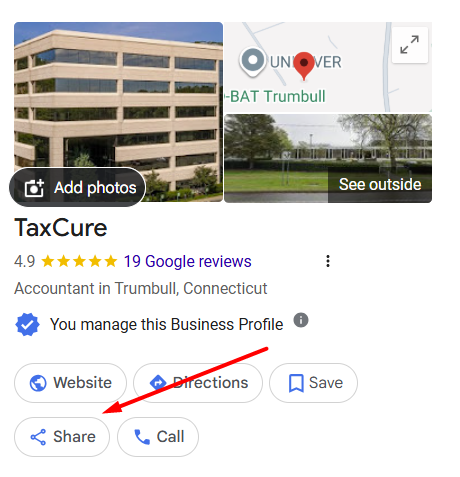
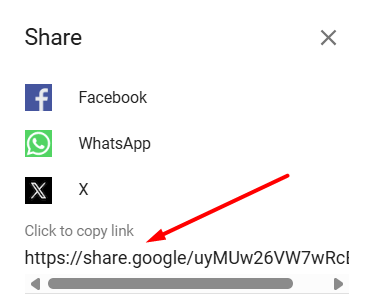
- A panel will open with a link at the bottom.
- Click the link to copy it.
Step 4: Paste the Link Into TaxCure
- Go back to your TaxCure profile edit page.
- Paste the link into the Google Business Profile URL field.
- Click Save.
That’s it.
What Happens After You Save
Once saved:
- Your Google star rating will appear on your TaxCure profile
- Your review count will be displayed
- Visitors will be able to see both your TaxCure reviews and your Google reviews
Your TaxCure reviews will always remain the primary reviews used for rankings and matching. Google reviews are shown as an added trust and credibility layer.
Important Notes
- This only works if you paste a valid Google Business Profile share link
- If your reviews don’t show up right away, try refreshing your profile or double-checking the link
- If you don’t yet have a Google Business Profile, we strongly recommend creating one
Summary
- TaxCure reviews show real tax resolution experience
- Google reviews add familiar social proof and trust
- Now you can show both
- Setup takes about 2 minutes
If you have any issues getting this set up, contact support and we’ll help you get it added.